ST-04 · QUENCH
Why GoHighLevel Workflows Fire at the Wrong Time
A GoHighLevel workflow texts a lead at 4am, sends the same reminder three times, or fires a day early. Why workflows run at the wrong time or count, and the fix for each.
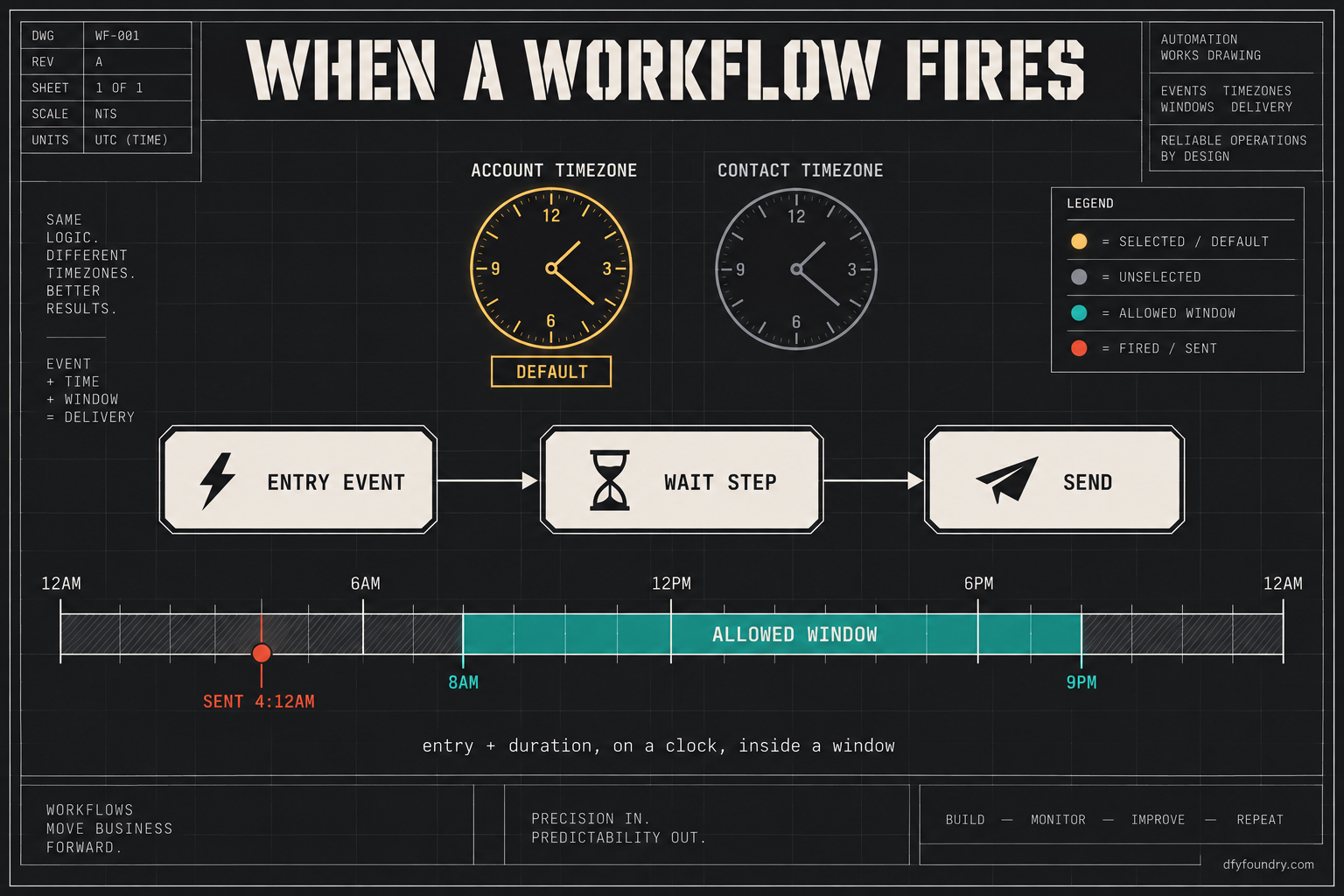
The text went out at 4:12 in the morning. A roofing client forwarded me the screenshot, and under it, one line: “my customer just asked why we texted her at four am.” The lead had filled in the quote form a little after midnight, unable to sleep, thinking about the water stain spreading across her ceiling. The workflow did exactly what it was built to do. It waited four hours, then sent the follow-up. Four hours after midnight is 4am, and the account had no instruction to hold the message until a decent hour. Nobody wrote a bug. The build ran to spec. The spec was wrong.
That is the quiet trap in GoHighLevel timing. A workflow that sends at the wrong time is not broken in any way the screen will show you. Every step reads green. The contact moved through the enrolment cleanly. The send fired and the message left the building. The only thing wrong is the hour on the clock when it landed, and the builder never shows you that until a client forwards a screenshot or a lead unsubscribes in anger. So before the next build leaves the floor, it is worth knowing exactly how GoHighLevel decides when a step runs, and every place that decision quietly goes sideways.
A workflow does not fire at a time, it fires after an event
The first thing to unlearn is the idea that a workflow step happens “at” a time. It does not. A step happens a measured duration after the contact reached it, counted on a clock you chose, and held, or not held, by a window you may never have set. Three settings decide the hour a message lands, and most people only ever look at one of them.
The clock the workflow runs on
Every workflow runs its wait steps and its time windows on one of two clocks: the account timezone or the contact timezone. The default is the account timezone, and most builds never change it (GoHighLevel). On the account clock, every contact is handled on the same zone, the one set in the sub-account settings, no matter where the contact actually lives. Flip the workflow to the contact clock and each contact moves on their own timezone instead. There is a catch worth remembering: if a contact has no timezone filled in, the workflow falls back to the account zone anyway (Growthable). A fresh sub-account almost never has contact timezones populated, so a workflow set to “contact timezone” can still run every early contact on the account clock, which is the opposite of what the setting looks like it promises.
The wait step, which counts duration
A wait step comes in a few shapes, and the shapes behave differently. A relative wait, “wait two hours” or “wait one day,” simply counts that duration forward from the moment the contact arrived at the step. Enter at 2am, wait two hours, and the next step runs at 4am, full stop. A “wait until” a specific day or time pins the step to a clock instead of a duration, and that is where the timezone setting bites hardest, because the platform has to decide whose version of “9am Tuesday” it means. Date-based waits tied to an appointment or a custom date field are evaluated on the sub-account zone and applied to every contact in the run, not each contact’s own zone (aEvent). Pick the wrong shape and the message is correct in every respect except the one that matters.
The time window, which holds the send
A time window is the instruction that says “do not run this step before 8am or after 9pm.” It is a condition you add on purpose, and if you never add it, there is nothing in the workflow stopping a step from running at any hour of the day or night. This is the setting almost nobody adds on the first build, and it is the one that would have saved the roofing client. Without a window, the relative wait is free to drop a text at 4am, because 4am is simply four hours after the contact showed up and no rule said otherwise.
Re-entry, which decides how many times
Separate from timing is the question of how often a contact runs the workflow at all. The trigger subscription setting decides whether a contact who qualifies a second time rejoins. Set it to add a contact only if they are not already in the workflow and a repeat event is ignored. Allow re-entry and the same contact can run the whole thing again (ConsultEvo). A new triggering event does not re-enrol a contact on its own; re-entry only happens when the setting allows it and the new event meets the trigger conditions the same way the first one did (GHL Scale Up). Get that setting wrong, or point a trigger at something that changes often, and timing stops being the problem. Repetition does.
Hold those four together, because the sentence that explains every mistimed send is this: the hour a message lands is the entry moment, plus a duration, read on a clock, inside a window, as many times as re-entry allows. Change any one of those without checking the other three and the account starts texting people at hours they did not agree to.
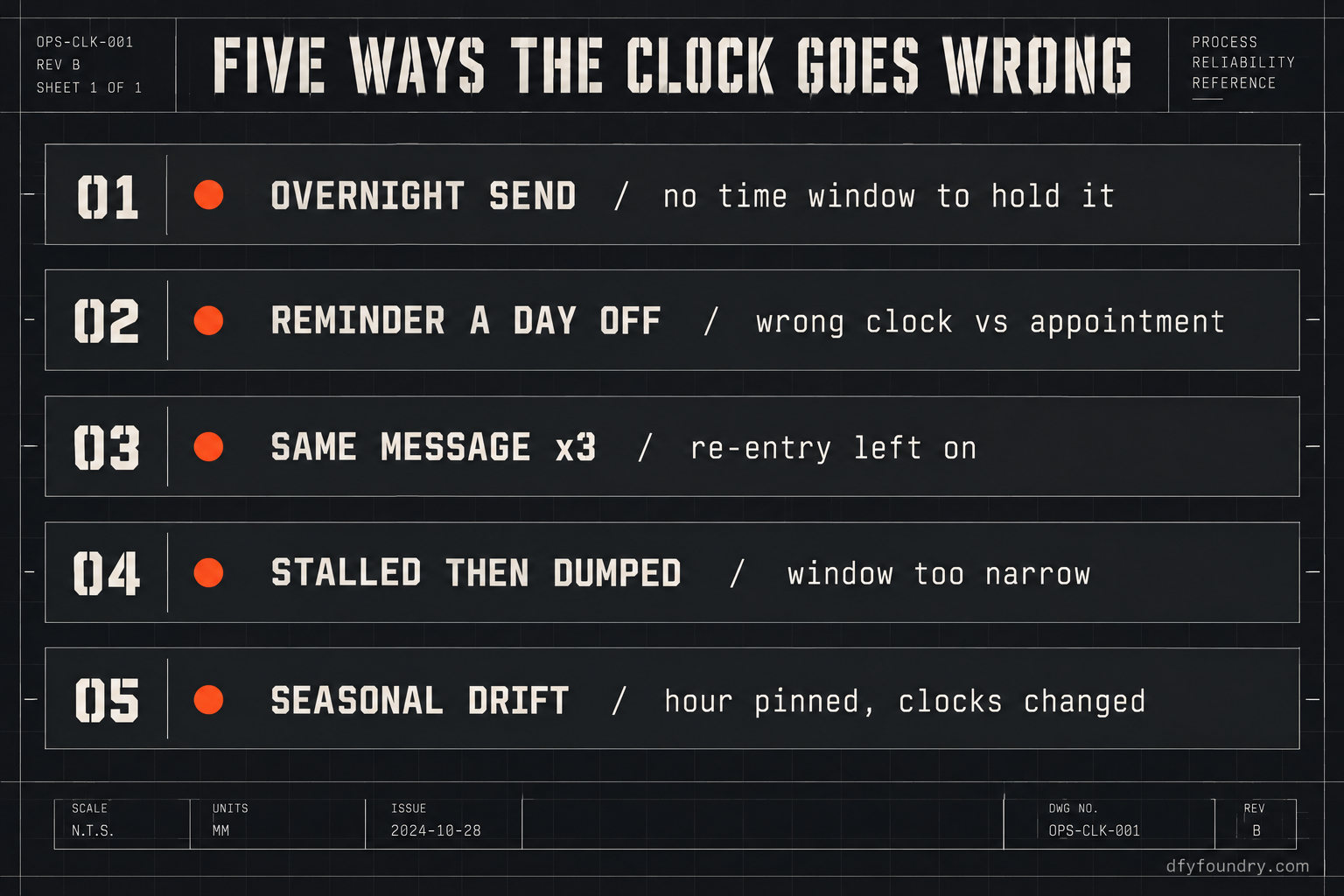
The five places the clock goes wrong
The symptom is always the same from the client’s side: a message arrived at a time that made the business look careless. What is actually wrong sits in one of five places. Work them in this order, because it runs from the most common and cheapest to the rarest.
One: the overnight send, with no window to stop it
What you see. A lead submits a form late at night and gets a text back in the small hours. The workflow ran perfectly. The contact got exactly the message the build promised, at an hour that reads as spam.
What is wrong. A relative wait counted a duration forward from an entry that happened at night, and no time window held the send until morning. The account was on its default clock, the contact had no timezone on record, and nothing in the workflow said “not before 8am.” This is not a rare edge. Any lead-capture workflow with a short follow-up wait will do it to every after-hours lead you take.
The fix. Add a time window condition before the send and set it to daytime hours, 8am to 9pm at the widest. Set the workflow to the contact timezone so the window means the contact’s morning, not yours, and backfill contact timezones where you can so the fallback to the account clock stops firing. Then submit a test lead at an hour outside the window and confirm the send holds until the window opens rather than going straight out.
Two: the reminder that lands a day off
What you see. An appointment reminder that should say “tomorrow at 2pm” goes out a day early, or the morning-of reminder lands the night before. The appointment itself is on the right day in the calendar. Only the reminder is confused.
What is wrong. The reminder math is running on a different clock than the appointment sits on. When the sub-account timezone and the client’s actual market are several hours apart, a reminder timed from the appointment can cross midnight and resolve to the wrong date. Date-based waits apply one zone, the sub-account zone, to every contact in the run, so a reminder that was correct for a contact in the builder’s own timezone is wrong for a contact three zones away (aEvent). The reminder is not reading the appointment time. It is reading a version of it shifted by the gap between two clocks.
The fix. Set the sub-account timezone to the client’s real market before anything else, because every date wait reads from it. Point the reminder at the appointment datetime field itself, not at a created-date or a static custom value that can drift. Then book a test appointment, let the reminder sequence run against it, and watch it land on the correct day, ideally with a test contact whose timezone differs from the account so the boundary gets exercised.
Three: the same message, two or three times over
What you see. A contact gets the welcome text, then gets it again an hour later, then a third time the next morning. Nothing in the workflow looks duplicated. There is only one send step.
What is wrong. Re-entry. The trigger fired again, and the subscription setting let the contact rejoin a workflow they were already running. The usual culprit is a trigger pointed at something that changes often, a contact update or a tag that other automations also set, so an unrelated edit re-enrols the contact and starts the sequence over (Growthable). A second workflow listening to the same trigger will do it too, firing its own copy alongside the first.
The fix. Set the trigger subscription to add a contact only if they are not already in the workflow (ConsultEvo). Filter the trigger tightly so only the real event enrols a contact, not any edit that happens to touch the record. Open the enrolment history on a contact who got doubled and read where the second entry came from (GHL Scale Up). Then audit the whole account for another workflow listening to the same trigger, which is the version of this that no single-workflow fix will catch.
Four: the send that stalls for hours, then dumps all at once
What you see. Messages that should trickle out across the day instead sit silent and then arrive in a clump, often first thing in the morning, all stamped within the same few minutes.
What is wrong. A time window that is too narrow. If the window only allows, say, a single morning hour, every contact who became due overnight is held at the gate and released together the moment the window opens. The window did its job. It was just set so tight that it turned a steady drip into a daily flood, which reads to a recipient as a burst of spam and to a carrier as a pattern worth filtering.
The fix. Widen the window to a realistic daytime span rather than a single hour, so held contacts release across hours instead of stacking into one minute. Where a sequence genuinely needs to pace itself, use the wait steps to space the sends and let the window only guard the edges of the day. Then run a batch of test contacts through and watch the release spread out rather than clump.
Five: the seasonal drift after the clocks change
What you see. A workflow that fired at the right hour all autumn starts landing an hour off in November, or a seasonal campaign built in summer goes out early once daylight saving ends.
What is wrong. The send hour was effectively pinned to a fixed offset rather than tied cleanly to the account’s current clock, so when the region’s clocks moved the workflow did not move with them. It is the rarest of the five and the easiest to miss, because it only shows up twice a year and only on workflows old enough to straddle a change. A seasonal campaign scheduled months ahead is the classic victim.
The fix. Tie every scheduled send to the workflow timezone setting rather than to a hardcoded hour, and put a note in your own calendar to re-check the time-sensitive workflows the week a region changes its clocks. On a build you ship to a client, this is part of the temper: it is not enough that it fires correctly today, it has to still fire correctly after the next clock change you will not be watching for.
The cost of a message at the wrong hour
A mistimed send is not only an embarrassment. It carries a real and countable downside, and the arithmetic is worth doing with your own figures rather than taking mine.
Start with the legal edge, because it is the one with a dollar sign attached that you did not set. The federal quiet-hours rule bars telephone solicitation outside 8am to 9pm in the recipient’s local time, and since 2024 one wave of class actions has read that rule to cover marketing texts, not just calls (Squire Patton Boggs). Whether consented texts are actually covered is contested and may be narrowed, so treat this as exposure rather than settled law. But the exposure is not small. Private plaintiffs can recover actual damages or $500 per violation, whichever is greater, and a court may raise each $500 to $1,500 for a willful or knowing violation (Burr & Forman). Per-message figures multiply fast, which is the entire reason this is a plaintiff’s-firm cottage industry.
Run it as a labelled estimate, and change every input to yours. Say a nightly reminder workflow on one client account is set with no time window, and over a season it sends to two hundred contacts at an hour outside the quiet-hours band. At the base $500 per message, that is a theoretical exposure of one hundred thousand dollars, before any argument about consent or willfulness. That number is not a prediction and not a measured outcome; it is two hundred multiplied by a statutory figure, printed so you can see how a dropped time window turns into a six-figure line item on paper. Put in your own contact count and the point holds: the window is not a nicety, it is the cheapest liability insurance in the build.
Now the revenue side, which is quieter and more common. The appointment reminders and no-show recovery a build ships are tuned toward a 70 percent no-show recovery target, and that target assumes the reminder reaches the person at a useful hour. A reminder that lands at 4am gets silenced with the rest of the night’s notifications and never read. A reminder a day early gets dismissed as a mistake. Either way the recovery sequence fires into a void, and a no-show rebooked is worth whatever a booked job is worth to that client. Take a clinic running, say, forty appointments a week with a fifth of them slipping to no-shows: that is eight no-shows a week the recovery sequence exists to catch, and a recovery rate near zero because the nudge arrived at the wrong hour. The tuning is real. It is also worth nothing until the clock underneath it is set, which is exactly the trade a dental clinic snapshot is built to get right before the client ever sees it.
The objections, answered straight
“It is one timezone dropdown, I will switch it to contact timezone and move on.” That fixes maybe a third of the problem. The dropdown only helps contacts who actually have a timezone on record, and a fresh account has almost none, so the fallback to the account clock keeps firing for your earliest leads. It does nothing about a missing time window, nothing about a relative wait landing at 4am, and nothing about re-entry sending the same text three times. The clock is four settings working together, not one. Flip the dropdown and you will fix the symptom you noticed and keep the three you did not.
“It fired on time when I tested it, so it is set correctly.” Timing bugs hide at the edges, and a test rarely visits the edges. You tested one contact, in your own timezone, during business hours, submitting once. The 4am send only shows on an after-hours lead. The day-off reminder only shows across a timezone boundary. The triple send only shows when a later event re-triggers. The clock change only shows twice a year. A test that enters at noon and runs clean proves the noon case and nothing else. Test the hard cases on purpose: an overnight entry, an out-of-zone contact, a repeat trigger, or you are only confirming the one path that was never going to fail.
“Why pay for a build when I can add a window and a filter myself?” You can, and the steps are above, in order, for nothing. If you set up GoHighLevel timing often enough to do it by reflex, do it yourself; you will be faster than handing it to anyone. What you buy from a finished build is that the account leaves the floor with the clock already set to the client’s market, time windows capped to legal hours, triggers filtered so nothing re-enrols by accident, and a test lead pushed through at an awkward hour to prove the send holds. Delivery is within 24 business hours of purchase confirmation, business hours being nine to five Central, Monday to Friday, so an order placed Friday afternoon lands Monday. Installation is free with every snapshot, and it comes with 15 hours of dedicated installation support to spend within eight days of purchase, covering the install, the website rebrand, A2P and 10DLC registration, email domain setup and a few extra automations where the build needs them. Third-party integrations and custom software are quoted before any work starts. Weigh that against a weekend of your own time and the exposure of one account texting leads at 4am, and the sums usually make themselves.
Before the next build ships
A workflow that fires at the wrong time is the most forgivable kind of fault to make and the least forgivable to leave in a client account, because the client is the one who gets the angry reply. Nothing on the screen will warn you. The only tell is the hour on a clock the builder never shows.
So add two steps to the end of your process. Before any account goes live, set its timezone to the real market and open every time-sensitive workflow to check the clock, the wait shape, the window and the re-entry rule together, not one at a time. Then test the awkward cases on purpose: enter a contact at 2am, enter one from another timezone, trigger a workflow twice, and watch what the account actually does at the edges where it breaks. If a message is going to land at the wrong hour, find it on a test contact, not on your client’s customer at four in the morning.
If you would rather the account arrive with the clock already set and the awkward cases already tested, that is what a commissioned build is, and what an HVAC company snapshot or any build in the catalogue ships as. The full pre-handover pass is in the handover checklist, the send path that has to hold before any of this timing matters is in why a snapshot will not send, and the numbers for a finished build are on the pricing page. Either way the rule is the same. Never hand over a workflow you have not watched run at the hour it is most likely to get wrong.
Questions on this
Because the wait step counts a duration from when the contact entered, on the account clock, and nothing holds the send inside daytime hours. A lead who submits at 2am hits the next step at 2am plus the wait. Set the workflow to the contact timezone, add a time window, and cap sends to 8am through 9pm local.
Almost always re-entry. The trigger fires again on a later event, often a contact update, and the subscription setting lets the same contact rejoin a workflow they are already in. Set the trigger to add a contact only if they are not already in the workflow, and filter the trigger so an unrelated field edit does not re-enrol them.
The reminder math is running on a different clock than the appointment. If the account timezone and the client's market are hours apart, a reminder timed from the appointment can cross midnight and land on the wrong date. Point the workflow at the appointment datetime field, set it to the right timezone, and test across a date boundary.
It carries the workflow and its timezone choice as built, but a fresh sub-account has its own account timezone and almost no contact timezones filled in. So a workflow that behaved in the builder's account can fire on a different clock once imported. Check the sub-account timezone and the workflow timezone setting before go-live.
The federal quiet-hours rule bars solicitation calls outside 8am to 9pm local, and since 2024 plaintiffs' firms have filed a wave of class actions reading it to cover texts too. The consent question is contested, but the safe operating rule is simple: do not let an automation send to a lead at an hour you would not call them.